
Rewrite a draft with AI, in place
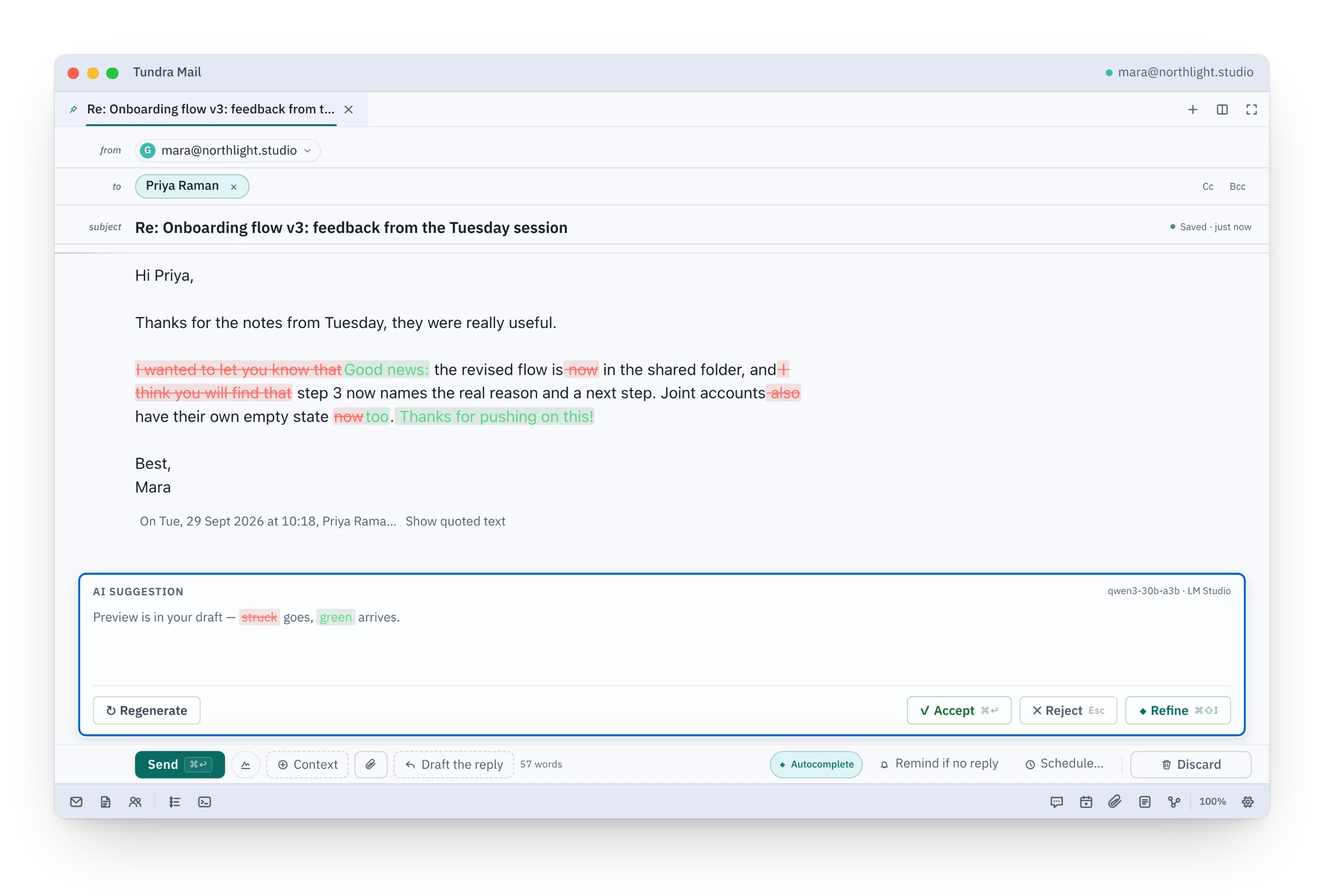
Select what you want changed, press ⌘⇧I and say how. The change appears in your draft: cuts in red, additions in green. Accept it or reject it.
See it here
A browser preview on sample data.
How it works
- Select the sentences you want changed and press ⌘⇧I. With nothing selected, it works on the whole draft.
- Say what you want, such as warmer and shorter, or tap a quick command like Friendly or Shorten.
- Read the change in place: removed words are struck through in red, new words appear in green. Nothing in your draft has changed yet.
- Press ⌘↩ to accept or Esc to reject. ↻ Regenerate tries again, and ◆ Refine lets you correct it.
- Keep typing and autocomplete offers the rest of the line. Tab takes it, ⌘→ takes one word, Esc dismisses it.
Learn more
The change appears inside your own sentences, so you see exactly what the model altered before anything lands. Names, dates or amounts it cannot back up are highlighted on the suggestion card for you to check.
When you ask the agent in chat to revise an open draft, its suggestions arrive the same way, and you keep or discard each sentence. The draft stays as you wrote it until you decide.
Good to know
- Rewrites and the agent need a model; each job can use its own, local or cloud. Once AI is switched on, autocomplete offers greetings, sign-offs and phrases from your snippets without one.
- An AI rewrite is accepted or rejected as a whole. Sentence-by-sentence choices are for the agent’s suggestions.
- Nothing sends until you press Send, and Send holds for five seconds so you can take it back.