
Answer an invite and offer times
Answer from the card above the message with Going, Maybe or Not going, propose a new time from the calendar, and type /times in any letter to offer times checked against your calendar.
See it here
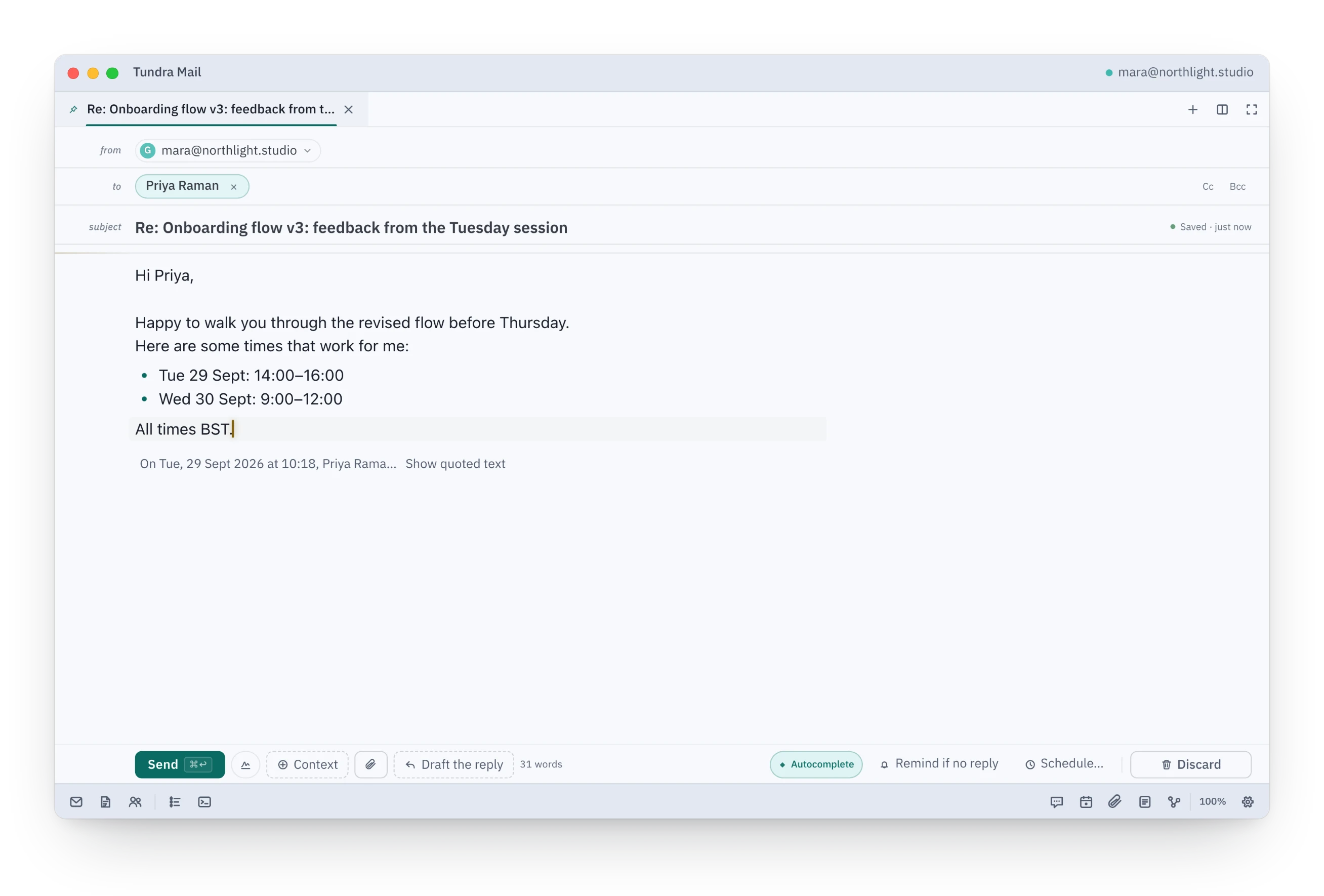
A browser preview on sample data. The preview plays the second part: offering times with /times in a reply.
How it works
- Open the invitation email. The invite card sits above the message.
- Click Going, Maybe or Not going on the card. Add a message if you like.
- Need another time? In the calendar, right-click the event and choose Propose new time…. Set New start and New end, then click Send proposal.
- To offer times in a letter, type /times, or press ⌘K and choose Compose: Offer times. A panel opens above the send bar with your next five open times, numbered 1 to 5.
- Type times the way you would write them anyway, for example tue 2-4, wed morning. Tundra turns them into exact times and checks each one against your calendar. A clash is shown, and you can still offer that time.
- Press Enter. Clean lines go into your letter, ending with your time zone, such as All times CEST. ⌘Z takes them out again in one step.
Learn more
The invite, the thread it came in and your week are in one window, so answering it does not mean switching apps.
Offer times writes the times into your letter and nothing else. Nothing is sent, booked or promised until you send the letter yourself.
Good to know
- Proposing a new time is native on Outlook. On Google, Tundra marks you tentative and adds your proposal as a comment.
- Tundra creates Google Meet links on Google calendars. Teams and Zoom links are detected and joinable, but not created.
- CalDAV calendars, such as iCloud, are in early beta.
- Offer times checks your own calendar on your computer, so it works offline. With no calendar connected you can still offer times, and the panel says they are not checked. With a connection it can also show which recipients are busy, when their calendar can be read.